Connect MT5 to your trading journal
Send every closed MetaTrader 5 trade to your free CROZAX journal automatically. About 5 minutes, once. No password, nothing to install except one small file, and the EA can only read your history.
Har band hone wali MetaTrader 5 trade khud ba khud apne muft CROZAX journal mein bhejein. Sirf ek dafa, taqreeban 5 minute. Password ki zaroorat nahi, sirf ek chhoti si file, aur EA sirf aap ki history parh sakta hai.
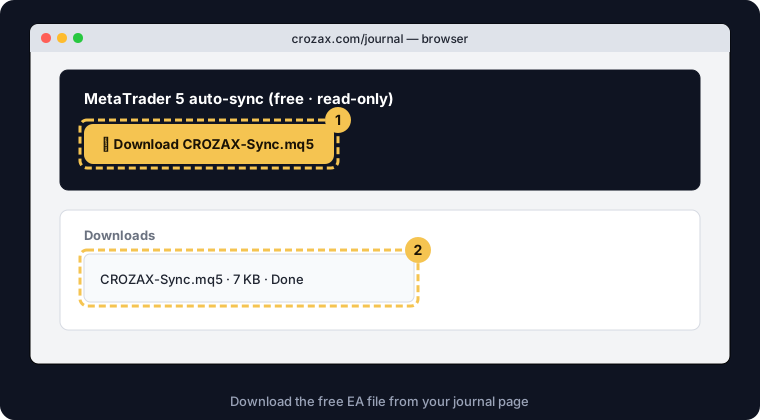
Download the CROZAX Sync file
Open your trading journal, press 🔗 MT5 auto-sync and then ⬇ Download CROZAX-Sync.mq5. The file is small (about 7 KB) and is saved in your Downloads folder.
CROZAX Sync file download karein
Apna trading journal kholein, 🔗 MT5 auto-sync dabayein aur phir ⬇ Download CROZAX-Sync.mq5. File chhoti si hai (taqreeban 7 KB) aur Downloads folder mein save hogi.
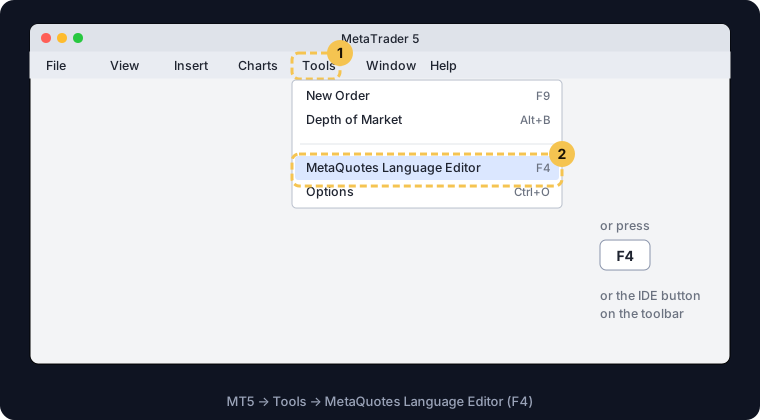
Open MetaEditor
In MetaTrader 5 on your computer go to Tools → MetaQuotes Language Editor, or simply press F4. MetaEditor is the free code editor that comes with MT5.
MetaEditor kholein
Apne computer par MetaTrader 5 mein Tools → MetaQuotes Language Editor par jayein, ya seedha F4 dabayein. MetaEditor MT5 ke saath aane wala muft code editor hai.
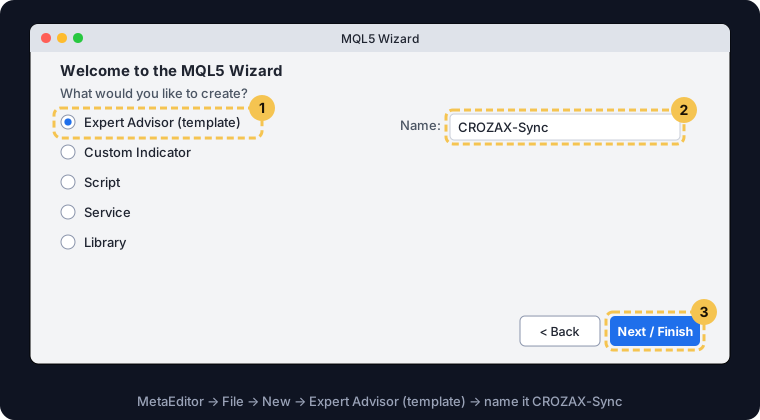
Add the EA to MetaEditor
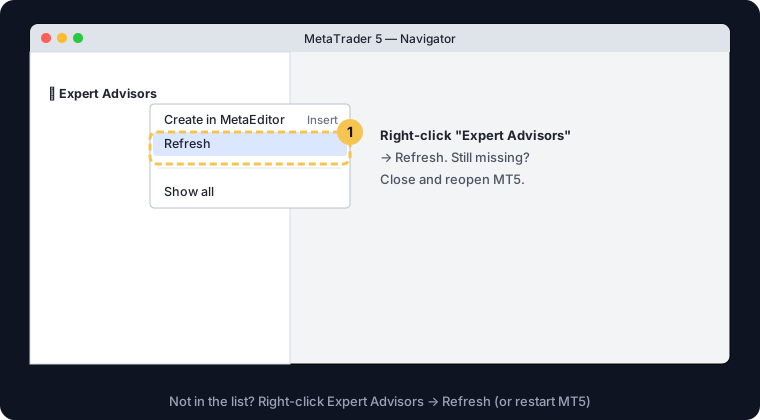
Way A (file): in MT5 choose File → Open Data Folder → MQL5 → Experts and copy the downloaded file there. Then in MetaEditor's Navigator right-click Experts → Refresh and double-click CROZAX-Sync.
Way B (works always): in MetaEditor choose File → New → Expert Advisor (template), name it CROZAX-Sync, press Next until Finish. Select everything in the new file (Ctrl+A, Mac Cmd+A), delete it, and paste the code from the code box.
EA ko MetaEditor mein laayein
Tareeqa A (file): MT5 mein File → Open Data Folder → MQL5 → Experts kholein aur download ki hui file wahan copy kar dein. Phir MetaEditor ke Navigator mein Experts par right-click → Refresh, aur CROZAX-Sync par double-click.
Tareeqa B (hamesha chalta hai): MetaEditor mein File → New → Expert Advisor (template) chunein, naam CROZAX-Sync rakhein, Next dabate jayein aur Finish. Nayi file mein sab kuch select karein (Ctrl+A, Mac par Cmd+A), delete karein, aur code box se code paste kar dein.
Compile it (F7)
Press Compile on the toolbar or F7. At the bottom, the log must say 0 errors. Warnings are fine.
}) and press F7 again.Compile karein (F7)
Toolbar par Compile ya F7 dabayein. Neeche log mein 0 errors aana chahiye. Warnings ho to koi masla nahi.
} hota hai) aur phir F7 dabayein.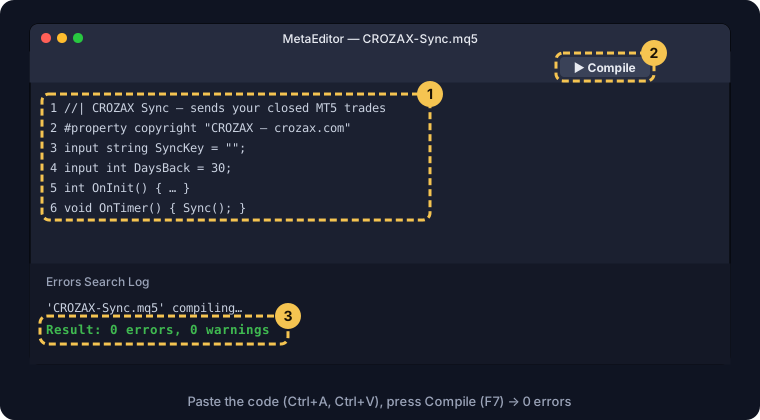
Allow CROZAX in MT5 (WebRequest)
In MT5: Tools → Options → Expert Advisors. Tick Allow algorithmic trading and Allow WebRequest for listed URL, double-click the empty line, type https://crozax.com and press OK. This only lets the EA talk to our website.
https://crozax.com (no space, no slash at the end).MT5 mein CROZAX ko ijazat dein (WebRequest)
MT5 mein: Tools → Options → Expert Advisors. Allow algorithmic trading aur Allow WebRequest for listed URL par tick karein, khaali line par double-click karein, https://crozax.com likhein aur OK dabayein. Is se EA sirf hamari website se baat kar sakta hai.
https://crozax.com likha ho (koi space nahi, aakhir mein slash nahi).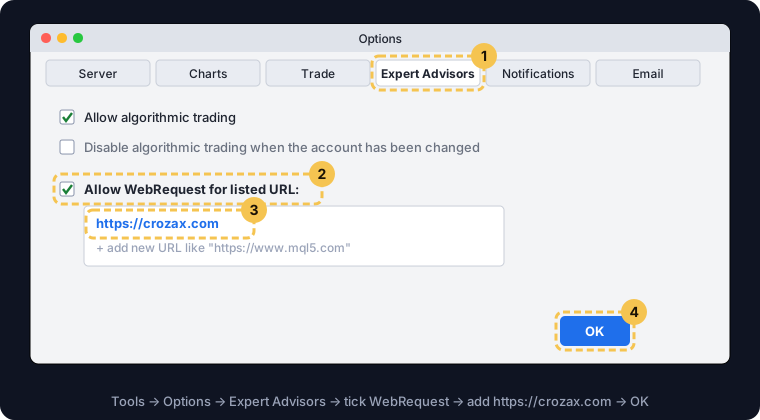
Copy your personal sync key
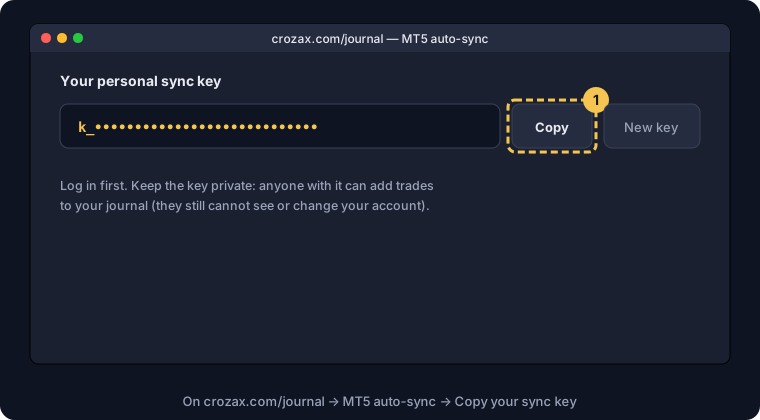
On crozax.com/journal (logged in) open 🔗 MT5 auto-sync and press Copy next to your key. The key only lets the EA add trades to your journal.
Apni sync key copy karein
crozax.com/journal par (login ho kar) 🔗 MT5 auto-sync kholein aur apni key ke saath Copy dabayein. Key sirf itna karti hai ke EA aap ke journal mein trades daal sake.
Put CROZAX Sync on a chart
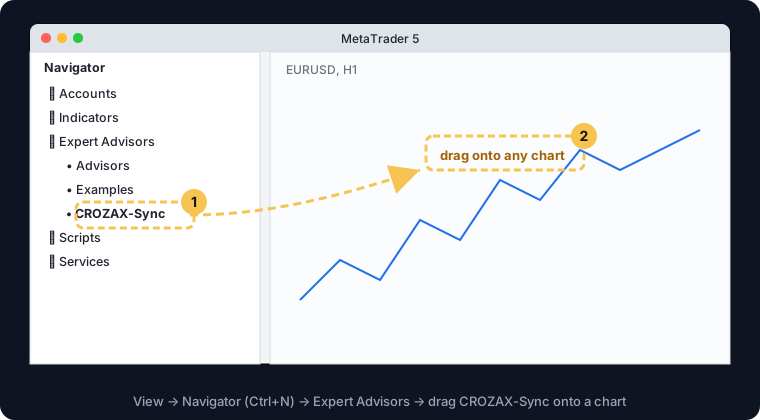
In MT5 open the Navigator (View → Navigator or Ctrl+N), expand Expert Advisors and drag CROZAX-Sync onto any open chart. Any symbol and timeframe works; it syncs the whole account.
CROZAX Sync ko chart par lagayein
MT5 mein Navigator kholein (View → Navigator ya Ctrl+N), Expert Advisors kholein aur CROZAX-Sync ko kisi bhi khule chart par drag kar dein. Koi bhi symbol ya timeframe chalega; ye poore account ko sync karta hai.
Paste the key and allow Algo Trading
A window opens. On the Inputs tab double-click the value next to SyncKey and paste your key (Ctrl+V, Mac Cmd+V). On the Common tab tick Allow Algo Trading. Press OK.
input string SyncKey = ""; to input string SyncKey = "your-key";, compile again (F7) and attach the EA again.Key paste karein aur Algo Trading on karein
Ek window khulegi. Inputs tab par SyncKey ke saamne value par double-click karein aur key paste karein (Ctrl+V, Mac par Cmd+V). Common tab par Allow Algo Trading par tick karein. OK dabayein.
input string SyncKey = ""; ko input string SyncKey = "aap-ki-key"; kar dein, dobara compile (F7) karein aur EA dobara chart par lagayein.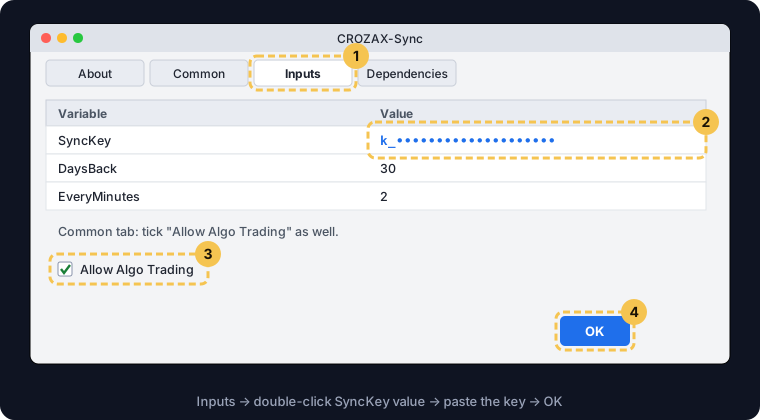
Turn on Algo Trading
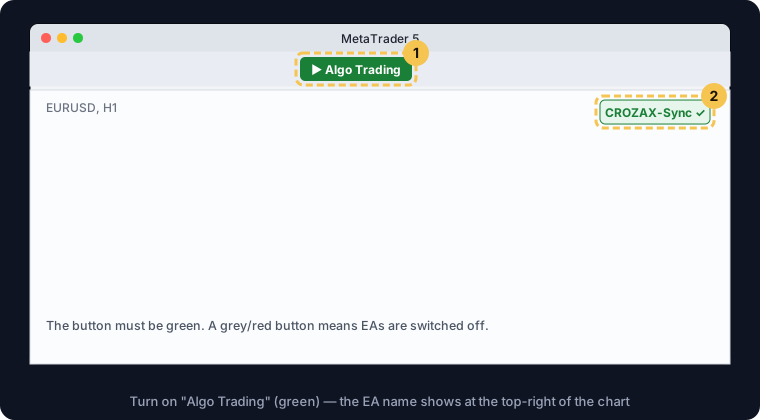
The Algo Trading button on the MT5 toolbar must be green, and the EA name appears at the top-right of the chart. CROZAX Sync never places trades; MT5 just needs this switch to run any EA.
Algo Trading on karein
MT5 toolbar par Algo Trading ka button green hona chahiye, aur chart ke upar daayein kone mein EA ka naam aa jata hai. CROZAX Sync kabhi trade nahi kholta; MT5 ko koi bhi EA chalane ke liye bas ye switch on chahiye.
Check it worked
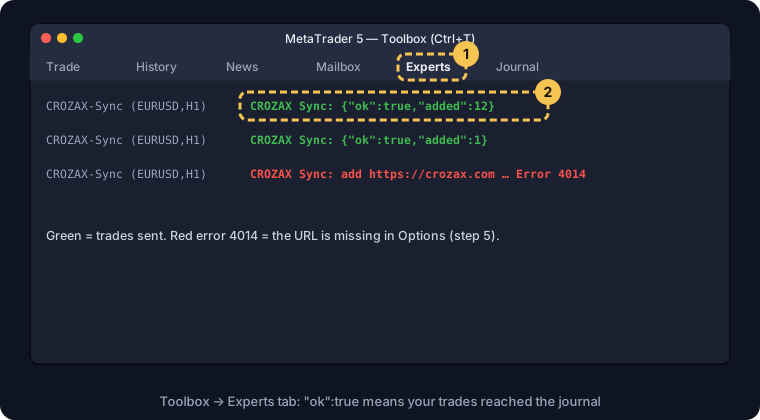
Open the Toolbox (Ctrl+T) → Experts tab. A line like CROZAX Sync: {"ok":true,"added":12} means your trades reached the journal. Refresh your journal: the trades are there. From now on every closed trade is sent within about 2 minutes.
Check karein ke kaam ho gaya
Toolbox kholein (Ctrl+T) → Experts tab. Agar CROZAX Sync: {"ok":true,"added":12} jaisi line aaye to aap ki trades journal tak pahunch gayin. Journal refresh karein, trades wahan hongi. Ab har band hone wali trade taqreeban 2 minute mein khud aa jayegi.
The CROZAX Sync code
This is the complete EA (the same as the download). Use Copy code for step 3, Way B. Read it if you like: it only reads closed deals and sends them to crozax.com.
CROZAX Sync ka code
Ye poora EA hai (download wali file jaisa). Step 3 ke Tareeqa B ke liye Copy code use karein. Chahein to parh lein: ye sirf band deals parhta hai aur crozax.com ko bhejta hai.
Show the codeCode dikhayein
//+------------------------------------------------------------------+
//| CROZAX Sync — sends your closed MetaTrader 5 trades to your free  |
//| CROZAX trading journal (crozax.com/journal).                      |
//| It only READS your trade history. It never opens, changes or      |
//| closes trades, and your MT5 password never leaves your computer.  |
//|                                                                    |
//| Setup:                                                             |
//| 1. MT5: Tools > Options > Expert Advisors > tick "Allow WebRequest |
//|    for listed URL" and add  https://crozax.com                    |
//| 2. Copy this file to MQL5\Experts (File > Open Data Folder),       |
//|    open it in MetaEditor and press Compile (F7).                   |
//| 3. Drag "CROZAX-Sync" onto any chart and paste your sync key       |
//|    from crozax.com/journal into the SyncKey input.                 |
//+------------------------------------------------------------------+
#property copyright "CROZAX — crozax.com"
#property link      "https://crozax.com/journal"
#property version   "1.10"
#property description "Sends closed trades to your free CROZAX trading journal. Read-only: it never places or changes trades."

input string SyncKey      = "";   // Your sync key from crozax.com/journal
input int    DaysBack     = 30;   // On the first run, send trades closed in the last N days
input int    EveryMinutes = 2;    // How often to check for newly closed trades

string   URL  = "https://crozax.com/api/journal/ea";
string   GV;               // terminal global variable that remembers the last synced close time
datetime lastSent = 0;

int OnInit()
  {
   if(StringLen(SyncKey) < 24)
     {
      Alert("CROZAX Sync: paste your sync key from crozax.com/journal into the SyncKey input.");
      return(INIT_PARAMETERS_INCORRECT);
     }
   GV = "CROZAX_SYNC_" + IntegerToString(AccountInfoInteger(ACCOUNT_LOGIN));
   if(GlobalVariableCheck(GV)) lastSent = (datetime)GlobalVariableGet(GV);
   else lastSent = TimeCurrent() - DaysBack * 86400;
   EventSetTimer(MathMax(1, EveryMinutes) * 60);
   Sync();
   return(INIT_SUCCEEDED);
  }

void OnDeinit(const int reason) { EventKillTimer(); }
void OnTimer() { Sync(); }

string JsonEsc(string s)
  {
   StringReplace(s, "\\", "\\\\");
   StringReplace(s, "\"", "\\\"");
   return(s);
  }

string Num(double v, int digits) { return(DoubleToString(v, digits)); }

//--- one closed position as a JSON object, built from all of its deals
string PositionJson(long pos_id, datetime &closeTime)
  {
   if(!HistorySelectByPosition(pos_id)) return("");
   string sym = "", type = "";
   double vol = 0, openPrice = 0, closePrice = 0, profit = 0, commission = 0, swap = 0, fee = 0, sl = 0, tp = 0, outVol = 0, outValue = 0;
   datetime openTime = 0; closeTime = 0;
   int digits = 5;
   for(int i = 0; i < HistoryDealsTotal(); i++)
     {
      ulong d = HistoryDealGetTicket(i);
      if(d == 0) continue;
      long entry = HistoryDealGetInteger(d, DEAL_ENTRY);
      long dtype = HistoryDealGetInteger(d, DEAL_TYPE);
      if(dtype != DEAL_TYPE_BUY && dtype != DEAL_TYPE_SELL) continue;
      sym = HistoryDealGetString(d, DEAL_SYMBOL);
      digits = (int)SymbolInfoInteger(sym, SYMBOL_DIGITS);
      profit     += HistoryDealGetDouble(d, DEAL_PROFIT);
      commission += HistoryDealGetDouble(d, DEAL_COMMISSION);
      swap       += HistoryDealGetDouble(d, DEAL_SWAP);
      fee        += HistoryDealGetDouble(d, DEAL_FEE);
      if(entry == DEAL_ENTRY_IN)
        {
         if(openTime == 0) { openTime = (datetime)HistoryDealGetInteger(d, DEAL_TIME); openPrice = HistoryDealGetDouble(d, DEAL_PRICE); type = (dtype == DEAL_TYPE_BUY ? "buy" : "sell"); }
         vol += HistoryDealGetDouble(d, DEAL_VOLUME);
        }
      else if(entry == DEAL_ENTRY_OUT || entry == DEAL_ENTRY_OUT_BY || entry == DEAL_ENTRY_INOUT)
        {
         double v = HistoryDealGetDouble(d, DEAL_VOLUME);
         outVol += v; outValue += v * HistoryDealGetDouble(d, DEAL_PRICE);
         datetime t = (datetime)HistoryDealGetInteger(d, DEAL_TIME);
         if(t > closeTime) closeTime = t;
        }
     }
   if(type == "" || closeTime == 0 || outVol < vol - 0.0000001) return("");   // still open (or partly open): send it once fully closed
   closePrice = outValue / outVol;
   for(int k = 0; k < HistoryOrdersTotal(); k++)                              // last stop-loss / take-profit set on the position's orders
     {
      ulong o = HistoryOrderGetTicket(k);
      if(o == 0) continue;
      if(HistoryOrderGetDouble(o, ORDER_SL) > 0) sl = HistoryOrderGetDouble(o, ORDER_SL);
      if(HistoryOrderGetDouble(o, ORDER_TP) > 0) tp = HistoryOrderGetDouble(o, ORDER_TP);
     }
   // v1.10: MAE / MFE — the furthest price moved against / in favour of the position while it was open (M1 bars)
   double mae = 0, mfe = 0, hi[], lo[];
   int nh = CopyHigh(sym, PERIOD_M1, openTime, closeTime, hi), nl = CopyLow(sym, PERIOD_M1, openTime, closeTime, lo);
   if(nh > 0 && nl > 0)
     {
      double H = hi[ArrayMaximum(hi)], L = lo[ArrayMinimum(lo)];
      if(type == "buy") { mae = MathMax(0, openPrice - L); mfe = MathMax(0, H - openPrice); }
      else              { mae = MathMax(0, H - openPrice); mfe = MathMax(0, openPrice - L); }
     }
   return("{\"position\":\"" + IntegerToString(pos_id) + "\",\"symbol\":\"" + JsonEsc(sym) + "\",\"type\":\"" + type + "\",\"volume\":" + Num(vol, 2) +
          ",\"openTime\":\"" + TimeToString(openTime, TIME_DATE | TIME_MINUTES) + "\",\"openPrice\":" + Num(openPrice, digits) +
          ",\"closeTime\":\"" + TimeToString(closeTime, TIME_DATE | TIME_MINUTES) + "\",\"closePrice\":" + Num(closePrice, digits) +
          ",\"sl\":" + Num(sl, digits) + ",\"tp\":" + Num(tp, digits) + ",\"commission\":" + Num(commission, 2) + ",\"fee\":" + Num(fee, 2) +
          ",\"swap\":" + Num(swap, 2) + ",\"profit\":" + Num(profit, 2) + ",\"mae\":" + Num(mae, digits) + ",\"mfe\":" + Num(mfe, digits) + "}");
  }

void Sync()
  {
   if(!HistorySelect(lastSent - 3600, TimeCurrent() + 86400)) return;
   long ids[]; int n = 0;
   for(int i = 0; i < HistoryDealsTotal(); i++)                               // positions that had a closing deal since the last sync
     {
      ulong d = HistoryDealGetTicket(i);
      if(d == 0) continue;
      long entry = HistoryDealGetInteger(d, DEAL_ENTRY);
      if(entry != DEAL_ENTRY_OUT && entry != DEAL_ENTRY_OUT_BY && entry != DEAL_ENTRY_INOUT) continue;
      long pid = HistoryDealGetInteger(d, DEAL_POSITION_ID);
      bool seen = false;
      for(int j = 0; j < n; j++) if(ids[j] == pid) { seen = true; break; }
      if(!seen) { ArrayResize(ids, n + 1); ids[n++] = pid; }
     }
   if(n == 0) return;
   string items = ""; int count = 0; datetime newest = lastSent;
   for(int j = 0; j < n; j++)
     {
      datetime ct = 0;
      string js = PositionJson(ids[j], ct);
      if(js == "") continue;
      items += (count > 0 ? "," : "") + js; count++;
      if(ct > newest) newest = ct;
      if(count == 100) { if(!Send(items)) return; items = ""; count = 0; }
     }
   if(count > 0 && !Send(items)) return;
   lastSent = newest;
   GlobalVariableSet(GV, (double)lastSent);
  }

bool Send(string items)
  {
   string body = "{\"account\":\"" + IntegerToString(AccountInfoInteger(ACCOUNT_LOGIN)) + "\",\"trades\":[" + items + "]}";
   char data[], result[]; string headers;
   StringToCharArray(body, data, 0, WHOLE_ARRAY, CP_UTF8);
   ArrayResize(data, ArraySize(data) - 1);                                     // drop the trailing zero
   ResetLastError();
   int code = WebRequest("POST", URL + "?key=" + SyncKey, "Content-Type: application/json\r\n", 15000, data, result, headers);
   if(code == -1)
     {
      Print("CROZAX Sync: add https://crozax.com in Tools > Options > Expert Advisors > Allow WebRequest. Error ", GetLastError());
      return(false);
     }
   if(code != 200) { Print("CROZAX Sync: server answered ", code, " ", CharArrayToString(result)); return(false); }
   Print("CROZAX Sync: ", CharArrayToString(result));
   return(true);
  }
//+------------------------------------------------------------------+
MetaTrader 4 and mobile users
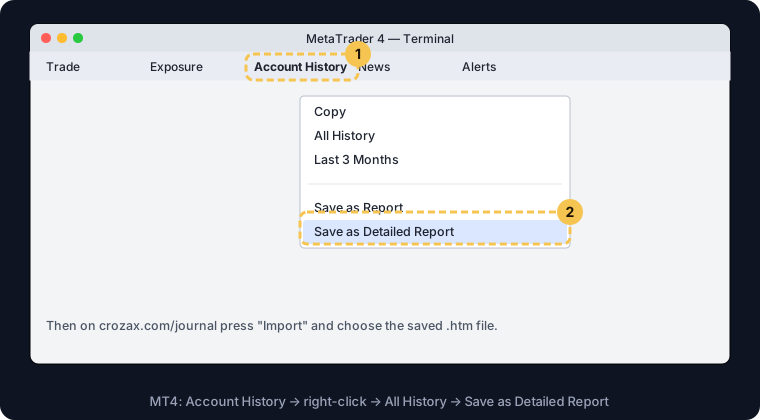
MT4 cannot run this EA. Instead, save your history as a statement and import it: in MT4 open Terminal → Account History, right-click → All History, right-click again → Save as Detailed Report. On your journal press ⬆ Import and choose the saved .htm file. Repeat whenever you want to update; trades already imported are skipped. The same Import also reads MT5 reports, cTrader, Binance futures and TradingView strategy CSV exports.
MetaTrader 4 aur mobile users
MT4 par ye EA nahi chalta. Is ki jagah apni history statement ki shakal mein save kar ke import karein: MT4 mein Terminal → Account History kholein, right-click → All History, phir right-click → Save as Detailed Report. Journal par ⬆ Import dabayein aur save ki hui .htm file chunein. Jab chahein dobara karein; pehle se aayi hui trades dobara nahi aatin. Isi Import se MT5 report, cTrader, Binance futures aur TradingView strategy ki CSV files bhi aa jati hain.
Questions
Do I have to give my MT5 password?Kya MT5 ka password dena hoga?
No. The EA runs inside your own MetaTrader and sends only closed-trade details with your private sync key. Your password never leaves your computer.
Nahi. EA aap ke apne MetaTrader ke andar chalta hai aur sirf band trades ki tafseel aap ki private sync key ke saath bhejta hai. Password aap ke computer se bahar nahi jata.
Can CROZAX place or close trades on my account?Kya CROZAX mere account par trade khol ya band kar sakta hai?
No. CROZAX Sync only reads your closed trade history. It has no code that opens, changes or closes orders.
Nahi. CROZAX Sync sirf band trades ki history parhta hai. Is mein order kholne, badalne ya band karne ka koi code nahi.
Does it work on the MT5 mobile app?Kya ye MT5 mobile app par chalta hai?
No. Phone and tablet MetaTrader apps cannot run Expert Advisors. Use MT5 on a Windows or Mac computer (or a VPS). On mobile you can still import a statement file.
Nahi. Phone aur tablet ki MetaTrader apps Expert Advisor nahi chala saktin. Windows ya Mac computer (ya VPS) par MT5 use karein. Mobile par aap statement file import kar sakte hain.
Must MT5 stay open?Kya MT5 khula rehna zaroori hai?
Yes, the EA works while MT5 is running. Trades you close while it is off are sent the next time MT5 starts (up to 30 days back by default).
Haan, EA tab kaam karta hai jab MT5 chal raha ho. Jab MT5 band ho tab band hone wali trades agli dafa MT5 chalne par bhej di jati hain (default mein 30 din tak pichhe).
I use MetaTrader 4. What can I do?Main MetaTrader 4 use karta hoon, kya karun?
MT4 cannot run the MT5 EA. Save a detailed statement (Account History → right-click → All History → Save as Detailed Report) and import it on the journal page with Import.
MT4 par MT5 wala EA nahi chalta. Detailed statement save karein (Account History → right-click → All History → Save as Detailed Report) aur journal page par Import se upload kar dein.
Page last updated 20 November 2026 · Report an error · How we calculate